Sunday, January 19, 2014

Free Modern Combat 4: Zero Hour Download

Game Of The Month Modern Combat 4: Zero Hour Download

This is something you won’t want to miss!
IGN has just named their game of the month Gameloft’s popular Modern Combat 4: Zero hour. This is by far one of the highest retail priced games ($6.99) which has gone free so you won’t want to miss out on this one.
Modern Combat 4: Zero hour
The game originally touched down on December of 2012 and received a huge update last June. Modern Combat 4 is powered by the Havok Engine, and has been widely praised for its console-quality graphics and smooth gameplay.
It has also garnered some rave reviews and has a rating of 4 out of 5 stars in the App Store. In order to redeem the game head on over to IGN’s Game Of The Month website.

Top 10 Reasons To Jailbreak iOS 7

1. Activator
It’s no question that Activator is on this list. The tweak was developed by Ryan Petrich and is the backbone of so many other Cydia tweaks. For those of you who are new to Jailbreaking the tweak allows you to assign actions to various triggers (gesture, button sequence etc.) selected by you. So for example you could set double tapping the status bar to replace home button functionality if you had a broken home button. Recently Activator was also given TouchID integration as well.
kHSt05Q
2. BlurPaper
The BlurPaper Cydia tweak simply blurs the homescreen and lockscreen wallpaper. You can find the tweak by adding the following repo to your sources list: http://repo.pnre.co.vu.
l2IdJ3C
3. F.lux
F.lux gets rid of the problem of blinding yourself looking at your iOS Device late at night. F.lux automatically adjusts your iPhone’s display to better adapt to the time of the day — not by reducing brightness specifically — but rather the tint of your display.
4. FlipControlCenter
This was of course one of the first tweaks released to customize the Control Center. FlipControlCenter lets you customize the toggles that are found in the first row.
5. CCHide:
CCHide is another Control Center customization tweak that lets you hide various sections of the Control Center. You are also able to hide playback controls in Control Center when music is not playing.
3s1EeB6
6. IconTool
This tweak very simply lets you backup and restore app data, rename icons, clear badges and so much more. It is definitely a power user tweak you should check out.
6BQoJI6
7. iFile 
iFile is a no brainer to have installed on your Jailbroken iPhone, iPod Touch or iPad. It’s a full blown iOS file manager, which comes with tons of features such as deleting, compressing, viewing, moving, copying, renaming files and much more.
WOreLzX
8. Message Customizer
oVowYGn
This has probably grown to be one of my favourite tweaks and as its name suggests it lets you customize literally every area of the Messages app in iOS 7 such as changing the colour of the messages bubbles, enabling Contact Photos and so much more.
9. SwipeSelection 
This tweak changes the way you edit text in iOS with gestures. It is a MUST HAVE.
qs9I3Mr-1
10. VideoPane
VideoPane is a tweak developed by Ryan Petrich that allows you to detach video from most video players and bring it straight to your SpringBoard. This is very similar to the native detach functionality in the YouTube app, but instead of being restricted to just YouTube the video will stick with you throughout iOS (even when you open and close apps).
zv6xqCJ
And those of you wondering how to replicate the theme shown in all the screenshots here are the instructions compliments of iPhonehacks:
  • Winterboard
  • M’flat iOS 7 Winterboard theme – Head over to this link for the installation instructions.
  • The Circular Connectivity Indicators tweak gives you the circular status indicators. You need to add the following repo to Cydia http://pi.kartikye.me/repo to install the tweak.
  • The name of the jailbreak tweak that makes the icons circular is Kiki, which can be installed from the following repo: http://pi.kartikye.me/repo (same as the previous one).
  • HomeScreenDesigner was used to create the 3×4 layout. You can apply 3×4 Textredditor 2014 layout in the Uploaded tab.
  • Cloaky was used to hide certain items in the Status bar.
  • Home screen Wallpaper – link
  • TransparentDock was used to remove blurred background from the iOS 7 dock.

How To: Get The iOS 7 Lockscreen On Your Mac

When Apple released OS X Mavericks it made it clear that it was in no way rushing to make both its mobile and desktop operating systems uniform in terms of design. Regardless there are always ways to customize your Mac yourself if you would like it to resemble the design style of iOS 7. This includes using things like icon packs, wallpapers and other utilities.
Now, however, there is an easy way to bring the great looking lockscreen from iOS 7 over to the Mac. All it is, is a screensaver with an oversized, 4-digit clock, an animated background and the text “Press any key to unlock.” Best of all it’s easy to install and customizable as well.
iOS 7 Lockscreen On Mac
According to the developer this screensaver supports OS X 10.8 Mountain Lion and below, and OS X Mavericks. It’s worth noting, however, some MacBook users with Mavericks installed have reported issues getting it to work. With that said here’s how you configure the screensaver.
Step 1) - Download the screensaver from the developer’s website, and open the package.
Step 2) - Next drag the file named ‘iOS 7 lockscreen by bodysoulspirit.qtz’ to Hard Drive > Library > Screen Savers. The developer has made this directory easy to navigate to by providing a shortcut to the folder called ‘Screen Savers alias.’
Step 3) - Lastly go inside your Mac’s system preferences and click the Desktop & Screen Saver icon. The new screensaver should show up towards the bottom of the list. You can now apply the screensaver and of course it by opening the screensaver options

BioUnlock - unlock your Mac with your iPhone's TouchID

A new upcoming TouchID Cydia tweak will make all Mac owners who don’t have an iPhone 5S, head down to the Apple store after reading this article. A new Cydia tweak is being developed called BioUnlock from Eric Castro that will let you unlock your Mac utilizing nothing more than your iPhone’s TouchID fingerprint sensor. You simply configure one fingerprint to unlock your Mac and another to                                        unlock the phone itself.              
All you will have to do to get this tweak working is install an application on the Mac, install the tweak from Cydia, and then pair the two devices. Once you map the fingerprints to their respected functions you will be good to go.
So just when can you expect BioUnlock to touch down on Cydia?
Castro has stated that the basic unlocking functionalities are completed, but the iOS and OS X apps still need some polishing before they will be ready for public consumption.
Who’s excited for this tweak? Drop us a line in the comments section below.

Friday, January 17, 2014

How to Block Calls, Messages & Texts in iOS 7


Block Calls in iOS 7 Blocking phone calls, numbers or messages is amount the standard feature in the modern Smartphone. Let us face the truth that there are many people from whom we just don't want to hear from.
So it is very baffling that the Cupertino company has not allowed blocking of text messages and calls into its brand new & completely redesigned Apple iOS 7 firmware.

iOS 7 Block Option & How to use it

So in the new iOS 7 you can easily block unrelenting exes, irritating friends, spammers, as well as telemarketers. Here is the method using which you can block iMessages, calls and texts in iOS 7.

How to Block FaceTime / Phone Calls in iOS 7?

Block Calls iOS 7 iPhone
The process is a lot similar to blocking calls on iOS. You just need to go to Settings and then Phone/Facetime and select Blocked option under it and start adding unwanted contacts in your block list. Again the block list is applicable to text messages, calls, iMessages as well as FaceTime calls. This means that even if you want to bock messages from a contact, you will also be blocking his calls too. At present there is no particular way to block only calls or messages.

How to Block Text Messages in iOS 7?

Block Text messages IOS 7
If you intend to block text on iOS 7, you simply need to go to Settings> Messages and then select Blocked. When you tap the Blocked option, you will be taken to a list of contacts that are blocked. There you need to select the “Add New” option to add another contact to the blocking list. And that is all. You must keep in mind that the block list is totally universal meaning that after you have added a contact, they will not be able to contact you in any way.

How to Block Unknown Numbers in iOS 7?

Block Caller IOS 7
Now the question arises that what if you want to block a number that is not a contact saved on your phone. The process is also almost same. To block any number that you have recently came across, you need to go to Contacts and then select the recent option. There you are going to see an “I” symbol that is located on right next to contacts name. Tap the “I” symbol next to the contact whom you want to block and then scroll down and you are going to find “Block This Caller”. All you need to do is to select that and it is done.
Block number iOS 7
To block any number who has just messaged you, you need to go to Message application, track down the contact, tap on the conversation, and you will see the contact button present on the top right corner. There you will see the same “I” button, tap on it, scroll down, and the select the Block This Caller option.

How to Unblock a Blocked Person in iOS 7?

Unblock Person IOS 7
If you want to unblock a person, that is very easy just like blocking any number. You just need to go to Settings and select any of the Messages, Phone or Facetime option and scroll down to select Blocked option. Then you will be able to see the official blocked list. To unblock, simply swipe it to left on the name and a red button is going to appear.

As it is illustrated for the above passage that blocking and unblocking is very easy in iOS, however, we will be glad if we can block certain functions in our phone in the coming future, but that is simply nitpicking.

Best Jailbreak Tweaks for iOS 7 - 7.0.4


Best IOS 7 Tweaks Finally, the jailbreak for iOS 7 has landed on our tech world. Evasion has done it again with their iOS 7 jailbreaking tool Evasion 7 on the latest Apple IOS software version.
Since the updated jailbreaking tool many users have jailbroken their device with sheer joy only to find out many problems still existed and it didn't comply according to their expectations.

Best Jailbreak Tweaks that are Worth of your Attention

This jailbreaking process also couldn't manage to get full access to all the latest models of apps and many jailbreak tweaks as well. Normally, the iDevice users jailbreak their devices to get full access to the Cydia app store. But, unfortunately many of the apps for different devices are still not available in Cydia to work with the new iOS 7. But, Evasion7 has released newer update to get around with this problem and tweak your device to get more from your jailbroken device. Our list with the best iOS 7 jailbreak tweaks is posted below:

#1: FlipLaunch

FlipLaunch IOS 7 Tweak
This new tweak can control the way you interact with your control center. Actually, it works along with FlipControlCenter. For accessing the apps quickly, you can add new buttons as well. It's a great tool for the developers as it removes the worry of adding new toggle buttons for different settings and apps which you can customize in your own way. In this way, you can place the app shortcuts on control center for quick access. All of the apps can be used as the toggle buttons. FlipLaunch can add a whole new bunch of controlling system for our iOS 7. It's free and available in BigBoss Repo.

2: CCsettings

Csettings IOS 7 tweak
This tweak will make your iOS 7 experiences smoother while you won't have to jump back and forth to settings every time you change any of the settings. This little tweak can add lots of toggles that are quite useful as shortcuts. Just like an Android device, the iOS 7 control center will have toggle buttons including Rotation / GPS / Turn off / Cellular data, Wi-Fi etc. You can also add or edit the toggle buttons to quickly access and toggle the settings.

#3: Bigify

Bigify IOS 7 tweak
Bigify can make a big difference in your iOS experience. It's great to have it back again in iOS 7. It provides visual display style badges for your hacked iOS 7. With the help of Bigify you can change the way your app icons reside in the home screen. You can rotate, resize and position them as well. With this tweak, you can also hide some of your icons.

#4: Emphasize

Emphasize IOS 7 Tweak
This is a tweak to make your life simpler as ever. You can use this tweak to change the user interface of your iOS 7 including custom color preference and lots of elements. You can also tweak the colors of panels, links and buttons. This free utility has 15 ready-made color options to choose from.

#5: Tabless

Tabless IOS 7 Tweak
This new tweak can help you in certain conditions when you have to remove the tab of your control and notification center. Just like Simplock, it'll remove the tab from your lockscreen as it's completely unnecessary to have a tab when you don't need one. It also cleans up some of your lock-screen's space. This tweak is available in ModMyi repo from Cydia. Currently, this tweak won't work with iOS 7 of iPhone 5S.

#6: NCAllOnly

NCAllOnly IOS 7 Tweak
With the updated iOS 7, the notification center has received a newer look that may not be working for some users. It divides the notification in different sections. It's kind of a big hassle to have those notifications sorted out like that. In order to keep it simple and make it like simpler iOS 6, use NCAllOnly. You can find it in BigBoss repo.

#7: Simplock

Simplock iOS 7 tweak
This is a newer add-in with which you can easily fling the lockscreen in order to unlock your iDevice. With this option added to your iOS 7 tweak list, you won't have to use the text that states "Slide to Unlock" for unlocking your device from sleep. The newer way to do it is using this Simplock app which is totally free. After installing this addon, your text to unlock by sliding will vanish. You can still unlock the device by the old way but you won't need to use Slide to Unlock text which isn't necessary at all.

#8: iCleaner Pro

iCleaner pro iOS 7 tweak
This app is one of the most popular and useful tools in the jailbreakers' community. It helps the users to remove the unwanted and unnecessary files from their iPhone/iPad. Now, you can do the same in the latest updated iOS 7. With more files you clean up, the more optimized your device will be. So start cleaning up tons of unused caches and files that freezes up your phone. In the iOS 7 update, it received more feedbacks from the users for better optimization and cleaner interface. Use this app to clean the unused attachments from mails and log files as well.

How To Unlock iOS 7 iPhone Using SAM Tickets


Sam unlock ios 7 Now that iOS 7 has been jailbroken, it has opened the way for us to talk about a free unlock for IOS 7 iPhone 4 or 4S using your previously saved SAM unlock tickets.
This is possible through the SAM unlock method. It is really possible to unlock your iOS 7 iPhone with this tool, so read this SAM unlock iOS 7 guide very carefully.

Some Important Notes:

  1. You can unlock any iPhone that is running iOS 7 and can be jailbroken with evasi0n7
  2. All basebands are compatible.
  3. SAM activation tickers must be saved for this guide to work.
  4. Only the SIM that was used to save activation tickets originally can be used.

Things you Will Need to Start:

  1. The SIM card with when activation tickets were saved.
  2. A Jailbroken iPhone
  3. Cydia's iFile.
  4. Dropbox

Guide To Unlock iOS 7 with SAM

For those who are not pretty familiar to follow such steps, we recommend waiting for the sn0wbreeze or redsn0w tool to get updated so that the process can be done automatically. This guide will include the method that is not related to Mobile Substrate, because Mobile Substrate has yet to be updated for Cydia.

iOS 7 iPhone unlock Using SAM

Step 1: Take out the original SIM card that was used during the saving of SAM activation tickets.
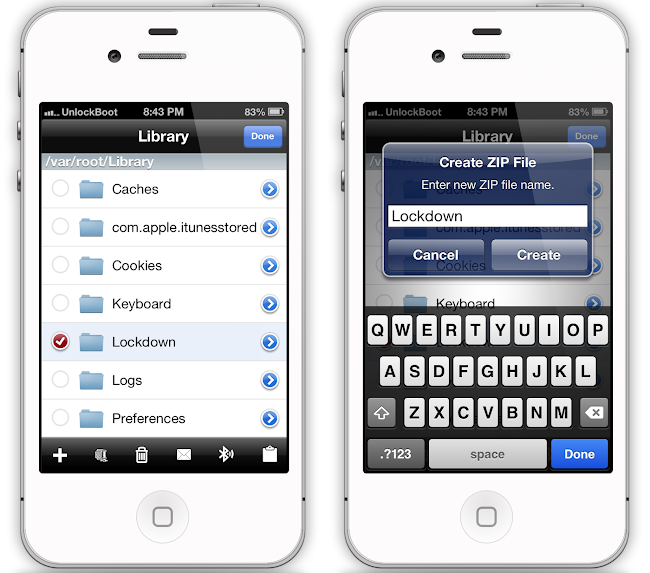
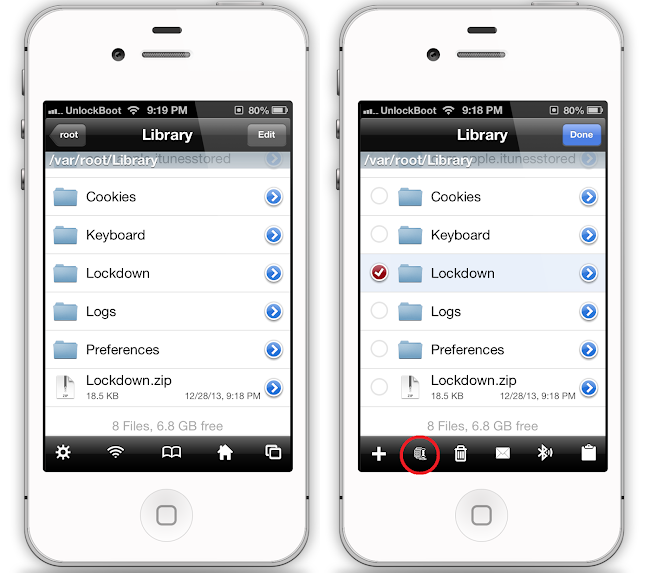
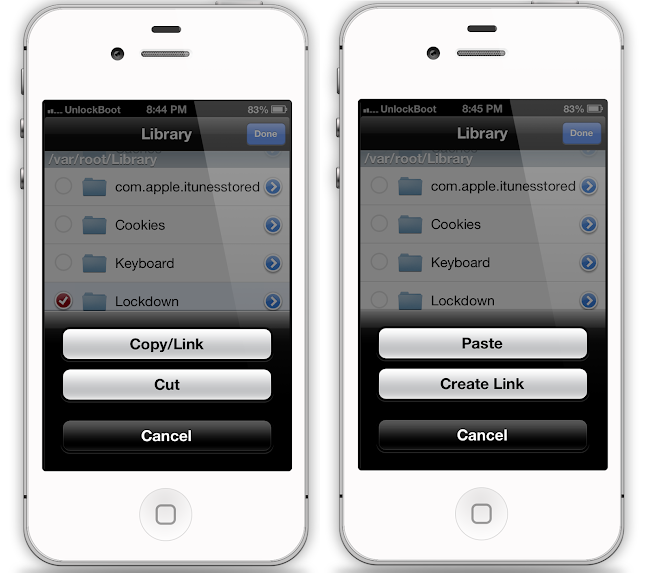
Step 2: Use iFile to go to /var/root/Library.
SAM Unlock IOS 7.0.4
Backup SAM Unlock Tickets using iFile
Step 3: Select edit > Lockdown folder.
Unlock ios 7 Cydia
SAM Unlock IOS 7 - Backup Tickets with iFile
Step 4: Use the zip button to create a backup and then delete the lockdown folder.
Step 5: Now unlock activation tickets. Launch Dropbox where the Lockdown folder was saved with the zipped file (valid activation ticket).
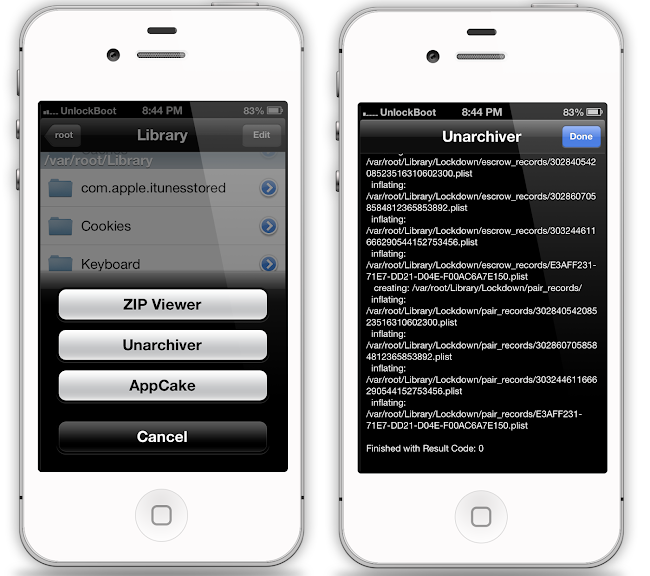
Step 6: Now use Unarchiver to unzip the folder through iFile.
Unlock IOS 7 With SAM
Unarchive SAM Unlock Tickets using Unarchiver from iFile
Step 7: Copy the Lockdown folder. Select edit from right > tap on clipboard icon and then copy it.
Restore SAM Unlock IOS 7
Restore tickets using iFile to Unlock IOS 7 with SAM
Step 8: Go to /var/root/Library > tap edit > paste the clipboard icon > done.
Step 9: Delete any SAMPrefs files and check for them through User/Library/Preferences and delete any com.binger.sam.plist files.
Step 10: Simply restart the phone.
Follow these steps correctly, you'll have an unlocked iPhone running iOS 7, but there might be some problems till Cydia is properly updated. Leave comments so we can help you.